OMG! My Brother Printer Finally Works with My Macbook Running Tahoe!!

Brother printer

If you, as was I, are among the countless people with Macbook Airs and Macbook Pros (MBA and MBP) running Tahoe who were unable to get your Brother printer to be recognized by your Macbook, not even able to airprint with, you know, AirPrint, because your computer *can’t find it* with the Brother printer, here’s what to do!

Here is my (very short) tale of woe.

I have a Brother L2750DW printer; it’s a monochrome laser printer and I *love* this thing. Took it out of the box, turned it on, it found my network, my then-Macbook Air found it, and it was printlove at first sight. It’s solid, and it never gave me even a peep of trouble.

Well, a few months ago I upgraded to a new Macbook Pro. This thing is a petite beast, it’s got the M5 Pro chip, tons of memory and even more tons of storage. And it’s running Tahoe (my Macbook Air is running an earlier OS).

But as I quickly found out what it *didn’t* have was compatibility with my Brother printer.

I tried *everything* – installing other drivers, installing helper apps, praying to the printer gods, until I was finally advised by Brother that there are only a certain number of printers that work with the new Tahoe OS, and the L2750DW ain’t one of them.

So I bit the bullet, and my tongue, and ordered one of the Brother printer models from their list of “Brother printers that work with Tahoe”. In my case I ordered the L2640DW.

Guess what.

That’s right, it had the *same* problem. Not only that, but the L2640DW is a complete and utter piece of garbage, very cheaply made, flimsy, not at *all* the solid machine that is the L2750DW. AND it nags you *constantly* to sign up online, subscribe to auto-shipping of supplies, give them your first born, and sacrifice a chicken.

So I lost another day trying to make the damned new one work, with the same failure rate as trying to make the original Brother printer work – that is, 100% failure rate. I even tried to find a version of Gutenprint that my machine would run (same failure rate).

So, I returned that piece of garbage L2640DW. I figured if I was going to have a Brother printer that my computer couldn’t connect with, at least it would be the one that I liked.

So, what did I do that got it working?

I updated to Tahoe 26.4.1, which was released a few weeks ago.

It was that freaking simple.

Someone at Apple must have been listening, and to whomever that was, *thank you*.

P.S. Whenever I say “Brother printer” I giggle a little inside. You folks who have watched the hilarious 2-season television series Trial and Error will get it. For those of you who haven’t watched it… do.

Brother printer

How to Zoom Out and Zoom in With Your Macbook Camera

How to Zoom Out and Zoom In with a Macbook Camera

OMG! I *finally* figured it out! I’ve been guesting on a fair number of video podcasts lately and my Macbook Pro camera always had my face filling the screen! Extreme closeup! Ewwww! Nobody in a Facetime or Zoom or Facebook Live or Substack Live *needs to see my pores!*

And I could *not* figure out how to make it zoom out a little, try though I might, and *search* though I might. Because you see all of the directions that I could find online talked about either ‘switching from 1.0x to 0.5x’ or ‘scrolling through the continuous control’, *neither* of which I could find!

Now, I knew enough to know that I had to actually have the camera activated in order to figure this out. So I jumped into an empty Zoom to do so.

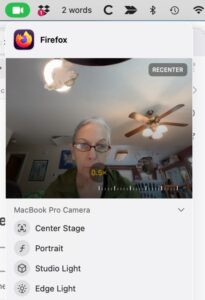
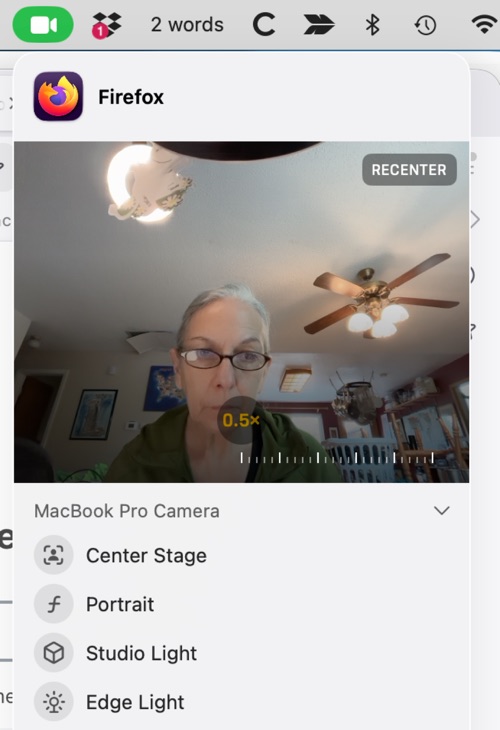
Once you activate the camera like that, the video camera icon (some will recognize it as the Facetime icon) will light up green on your menu bar (at least it does on mine). And you have to click on that camera icon in the menu bar.

Well, I knew that too. And when you click on that camera icon it gives you a drop down of possible action, which are:

Center Stage (turn that thing off immediately, it’s creepy as hell *for others who are seeing you* when your camera follows you – which is what Center State does)

Portrait

Studio Light

Edge Light

Reactions

Notice what’s not there? Yeah, Zoom.

I looked and looked, and futzed and futzed, and during one of those times my hand must have slipped a bit on my trackpad and suddenly I had moused-over (trackpadded-over?) the actual image that is the preview of what the camera is seeing.

And there it was, in all its glory – THE ZOOM BAR!!!

So, if you, like me, have been trying to figure out how the heck to get your Macbook or Macbook Pro camera to zoom the **** out so that your fellow video chatters can’t count your nose hairs, now you know.

(This was done on my 2026 Macbook Pro, so if you are on a different Macbook your mileage may vary, but I’m betting not by much.)

P.S. If this was helpful for you, please drop me a comment and let me know!
How to Zoom Out and Zoom In with a Macbook Camera